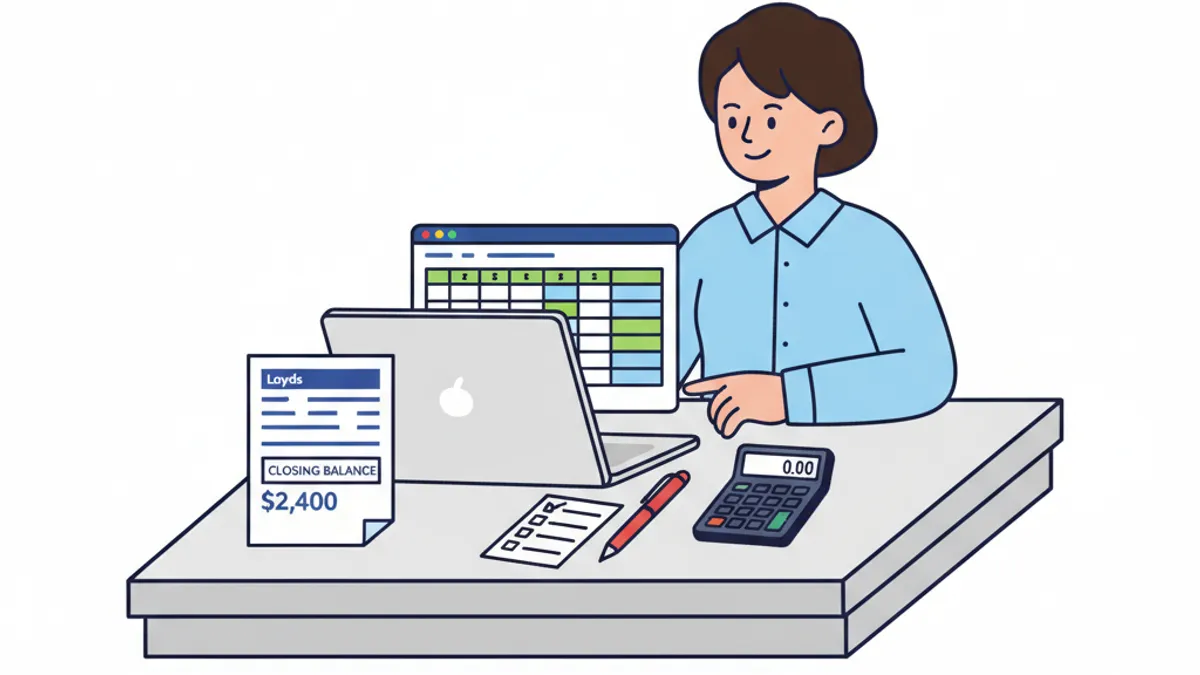
Bank statement data validation is the process of checking your converted bank statement file for errors before importing it into accounting software such as Xero, QuickBooks, or Sage. A proper validation run catches mismatched balances, duplicate transactions, wrong date formats, and encoding errors that would otherwise corrupt your ledger. Done correctly, it takes under ten minutes and can save hours of reconciliation work later.
Why Does Bank Statement Validation Matter?
Skipping validation is one of the most common mistakes small businesses and bookkeepers make when converting statements. A PDF-to-CSV conversion can look perfectly formatted on screen but still contain subtle errors that only surface when your totals do not reconcile at month end.
Consider a real scenario: a bookkeeper imports a three-month Lloyds statement covering January to March 2025. The conversion tool misread a handwritten annotation on page four and duplicated a £1,247.50 direct debit. Without a validation step, that error sits quietly in the ledger until the annual accounts are prepared, at which point untangling it costs far more time than a simple pre-import check would have.
HMRC's Making Tax Digital (MTD) programme increases the stakes further. Under MTD for Income Tax Self Assessment, which applies to sole traders and landlords with income over £50,000 from April 2026, your digital records must be accurate and complete. Errors introduced at the import stage are still your responsibility, regardless of whether a conversion tool caused them.
What Should You Check Before Importing a Converted Bank Statement?
A thorough validation covers four main areas: balance reconciliation, transaction integrity, formatting consistency, and duplicate detection. Work through each one in order.
1. Balance Reconciliation
Opening and closing balances are your first checkpoint. Open your original bank statement (PDF or paper) and compare the opening balance on day one and the closing balance on the final day against the figures in your converted file.
- Opening balance in original: must match row one of your CSV exactly
- Closing balance in original: must match the final running balance in your CSV
- Sum of all debits minus sum of all credits, applied to the opening balance, must equal the closing balance
If those three figures do not agree, stop. Do not import. Something went wrong during conversion and you need to find it before it enters your software.
2. Transaction Count Verification
Count the number of transactions on your original statement and compare it to the number of rows in your converted file. Most UK bank statements print a transaction count on the final page or in the statement summary. Barclays, HSBC, NatWest, and Lloyds all include a total transaction count in their PDF statement footers.
A mismatch of even one transaction is a red flag. Common causes include:
- A page break mid-transaction during PDF extraction
- A zero-value entry (such as a balance carried forward line) being treated as a transaction
- Two transactions on consecutive lines being merged into one row
3. Date Format Consistency
UK banks print dates in DD/MM/YYYY format on statements. Most accounting software accepts DD/MM/YYYY or YYYY-MM-DD. The problem arises when a conversion tool produces mixed formats in the same file, for example DD/MM/YYYY for most rows but MM/DD/YYYY for dates where the day value is 12 or below (because they are ambiguous).
Sort your converted file by date and visually scan the column. If you see a 03/05/2025 followed by a 05/03/2025 where you expected chronological order, your date column has a format conflict. Xero in particular will reject rows with inconsistent date formats during import.
4. Duplicate Transaction Detection
Duplicates are more common than most people realise. They appear when:
- A statement spans two months and overlaps with a previously imported file
- The converter processes a page twice due to a rendering error
- You accidentally upload the same statement twice to a conversion tool
To check for duplicates, sort your CSV by amount and then by date. Any two rows with identical amounts, dates, and descriptions on consecutive lines need manual investigation.
5. Character Encoding and Special Characters
UK bank statements sometimes include special characters in merchant names, for example a café named "Café Nero" or a business using an ampersand. If your conversion tool outputs UTF-8 but your accounting software expects ASCII, those characters become garbled strings. Check a handful of description fields manually, particularly for businesses or transactions you recognise, to confirm the text is clean.
How to Validate a Bank Statement File in Practice
Here is a practical step-by-step process you can follow for any converted statement:
- Download your converted CSV and open it in a spreadsheet application (Excel or Google Sheets).
- Count the rows using =COUNTA(A:A)-1 (subtract one for the header) and compare to your statement's transaction count.
- Check opening balance: find the running balance in the first data row and compare it to your statement.
- Check closing balance: find the running balance in the last data row and compare it to your statement.
- Run a SUM on your debit column and a SUM on your credit column. Apply the formula: opening balance + total credits - total debits = closing balance.
- Sort by date and scan for any dates that appear out of chronological sequence.
- Sort by amount + date and look for consecutive duplicate rows.
- Scroll through the description column for any garbled characters or empty rows.
- If all checks pass, save the file and import.
The bank statement converter at convertbank-statement.com/convert produces files with consistent date formats and a built-in balance check summary, which reduces the manual work at steps three and four significantly.
Validation Checklist: At a Glance
Use this table as a quick reference before every import.
| Validation Check | What to Compare | Pass Condition |
|---|---|---|
| Opening balance | CSV row 1 vs. original statement | Exact match |
| Closing balance | CSV last row vs. original statement | Exact match |
| Transaction count | CSV row count vs. statement total | Exact match |
| Date format | All dates in same format | Consistent DD/MM/YYYY or YYYY-MM-DD |
| Chronological order | Sorted date column | No out-of-sequence dates |
| Duplicate transactions | Sorted amount + date column | No identical consecutive rows |
| Description encoding | Spot-check 10 descriptions | No garbled or missing characters |
| Empty rows | Scroll or filter for blanks | No empty rows in data range |
Print this table or save it as a tab in your working spreadsheet. Running through it takes fewer than ten minutes for a typical three-month statement.
Which Accounting Software Has the Strictest Import Requirements?
Knowing your target software helps you prioritise certain checks.
Xero rejects files where the date format is inconsistent or where the amount column contains currency symbols (£). It also flags duplicate transactions against previously imported data, which is helpful, but it does not catch duplicates within a single file.
QuickBooks Online is more tolerant of date format variations but struggles with description fields longer than 100 characters, which some converted Barclays statements produce.
Sage 50 requires the CSV to use a specific column order (date, reference, description, debit, credit) and will silently skip rows with missing values rather than raising an error. That makes the row count check especially important when importing into Sage.
FreeAgent, popular with freelancers and contractors, handles most CSV formats well but expects amounts as positive numbers in separate debit and credit columns rather than signed values in a single column.
If you are unsure which format your software expects, the bank statement conversion guide at convertbank-statement.com/guides/best-bank-statement-converter-2026 includes format requirements for all major UK accounting platforms.
Practical Tips for High-Volume Validation
Bookkeepers processing statements for multiple clients each month can make validation faster with a few simple habits:
- Keep a validation log: a simple spreadsheet with one row per import, recording the statement dates, transaction count, opening balance, closing balance, and a pass/fail for each check. This creates an audit trail useful at year end.
- Convert one month at a time rather than bulk-converting a full year, so that any errors are isolated to a smaller date range.
- Check the pricing options at convertbank-statement.com/pricing if you are processing more than ten statements per month, as volume plans include format presets that reduce manual formatting steps.
- Run your spreadsheet's duplicate detection formula (=COUNTIFS) on the date and amount columns before you begin the visual checks.
The HMRC guidance on record-keeping requirements confirms that businesses must keep accurate financial records, which means validated, not just converted, data. The distinction matters during an enquiry.
For further reading on what constitutes compliant digital record-keeping under MTD, the ICAEW's MTD hub is a reliable reference. And if you want to understand what UK banks' own data standards look like, the Open Banking Implementation Entity publishes the technical specifications that govern machine-readable bank data in the UK.
James Cooper is a chartered accountant with over ten years of experience helping UK small businesses and bookkeepers manage their financial records and meet HMRC compliance requirements.
Frequently Asked Questions
What is bank statement data validation? Bank statement data validation is the process of checking a converted bank statement file (such as a CSV) for errors before importing it into accounting software. It involves verifying that opening and closing balances match the original statement, that the transaction count is correct, that dates are consistently formatted, and that no duplicate rows exist.
How long does it take to validate a converted bank statement? For a typical one-month statement with 50 to 150 transactions, a thorough validation using a spreadsheet takes five to ten minutes. A three-month statement might take fifteen to twenty minutes if you work through all eight checks in the checklist above.
What happens if I import an unvalidated bank statement into Xero? Xero may accept the file without errors even if the data contains duplicates or balance discrepancies. Those errors will appear later as reconciliation differences, often only spotted at month end or during the annual accounts. Correcting them retrospectively is significantly more time-consuming than catching them before import.
Does my accounting software check for duplicates automatically? Xero and QuickBooks Online check for duplicates against previously imported transactions, but neither application reliably detects duplicates within a single import file. You need to perform that check manually or using a spreadsheet formula before importing.
Which UK banks produce PDFs that are hardest to convert accurately? Statements from HSBC and Halifax tend to produce the most conversion errors because of their multi-column layouts and the way they handle pending transaction labels. NatWest and Lloyds PDFs generally convert more cleanly due to consistent single-table formatting.
Do I need to validate bank statements for HMRC compliance under MTD? HMRC does not prescribe a specific validation process, but its record-keeping requirements mean your digital records must be accurate and complete. Under MTD for Income Tax Self Assessment, which applies from April 2026 to sole traders and landlords with income over £50,000, errors in your imported records are your responsibility. Validation is the most practical way to meet that standard.
Last reviewed: 2026-04-13